Purchases & Expenses
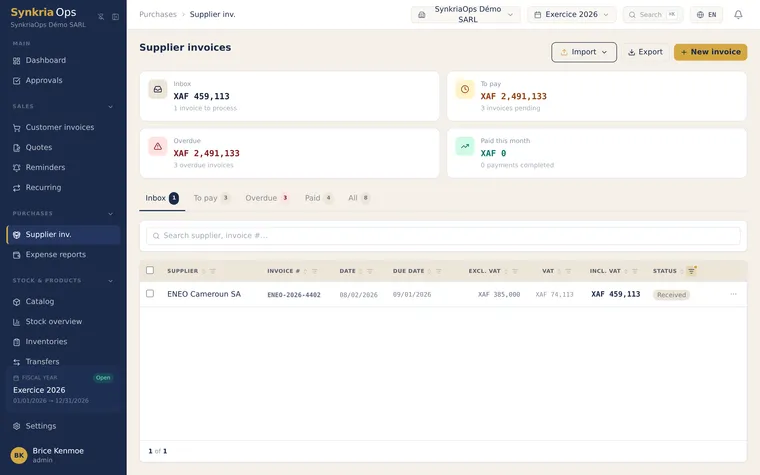
The Purchases & Expenses module covers two distinct flows: supplier invoices (company purchases) and expense reports (employee-advanced expenses awaiting reimbursement). Both automatically generate the SYSCOHADA entries in the ACH journal (Plan Comptable OHADA — OHADA Chart of Accounts), with no manual bookkeeping.
The SYSCOHADA purchase workflow follows the pipeline: Receive invoice → Record (OCR or spreadsheet import) → Validate (entry 401xxx/6xxx/4452) → Payment → Account reconciliation (lettrage — account reconciliation) of 401xxx. Validation is the key step — before validation the invoice is in RECEIVED status and has zero accounting impact; the liability to the supplier is only recorded at validation time. A supplier can be created on the fly while recording the invoice. Manual line-by-line entry is coming soon.
Expense reports follow a separate workflow: an employee submits expenses with supporting documents, the accountant or administrator approves, then records the reimbursement. Approval creates the 6xxx/422xxx entry (liability to the employee), and reimbursement settles the 422xxx account. Any missing receipt blocks approval — photograph your receipts immediately after spending.
Before you start
Section titled “Before you start”To use the Purchases & Expenses module, make sure that:
- An open fiscal year exists for the current year (Settings → Fiscal years)
- The supplier is created in Contacts → Suppliers, or will be created on the fly during entry
- The appropriate expense accounts 6xxx are available in the SYSCOHADA chart of accounts
- For expense reports: the employee has a 422xxx sub-account in the chart of accounts
Available guides
Section titled “Available guides”SYSCOHADA purchase pipeline
Section titled “SYSCOHADA purchase pipeline”Supplier invoice received → Recording (OCR or spreadsheet) ↓ Validation → Automatic ACH journal entry Debit 6xxx expenses + Debit 4452 deductible VAT Credit 401xxx supplier ↓ Payment → Matching (lettrage) 401xxx → PAIDNote: accounts 4452 (deductible VAT on purchases) and 401xxx (supplier sub-account) are managed automatically — you only need to select the appropriate 6xxx expense account for each line.
For suppliers not subject to VAT (informal sector in the OHADA zone), do not check deductible VAT. The entry then only includes a debit to 6xxx and a credit to 401xxx for the full total amount.
Where to start?
Section titled “Where to start?”If you are new to the Purchases module, follow this initial path:
- Create your first supplier in the Contacts module
- Record your first supplier invoice via OCR or spreadsheet import
- Activate OCR to speed up future entries
For field team expenses, first verify that each employee has a 422xxx sub-account, then set up the expense report workflow.