Inviting your team
By the end of this guide, you will be able to invite a collaborator with the right role, resend an expired invitation, change an assigned role and revoke access.
SynkriaOps lets you invite as many collaborators as needed to a single tenant: your accountant, your CFO, your external accounting firm, or a silent partner with read-only access. Each user receives exactly the rights corresponding to their role.
Choose the right role
Section titled “Choose the right role”| Role | Rights | Typical use case |
|---|---|---|
ADMIN | Full access: settings, users, all entries, fiscal year closing and reopening | Business owner or administrative manager who also manages access |
CFO | All day-to-day operations + create and close a fiscal year, approval override | Chief financial officer, management controller, chief accountant |
ACCOUNTANT | Create and validate accounting vouchers, reconciliation, FEC/Excel exports, read all financial statements | In-house accountant, data-entry manager |
AUDITOR | Read only: dashboard, financial statements (simplified mode), general ledger, trial balance, journals | Statutory auditor, partner with oversight rights, investor |
CLIENT | Restricted read access to the client portal: their invoices, quotes and balances | End customer with access to their own documents |
Inviting a user
Section titled “Inviting a user”-
Sign in to app.synkriaops.com with an ADMIN account.
-
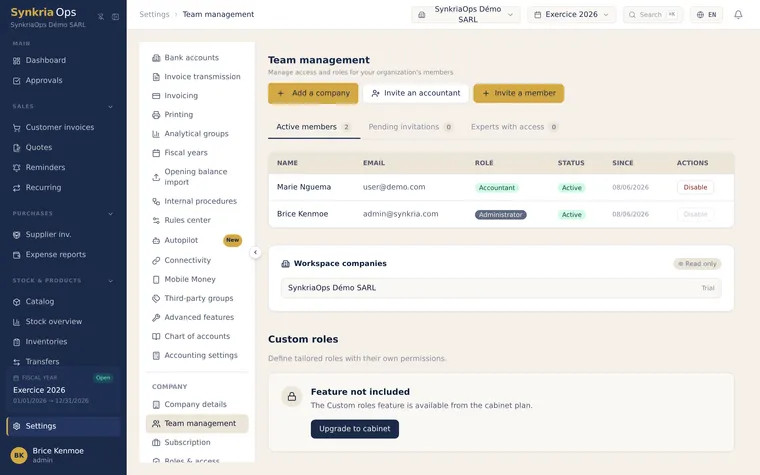
In the sidebar, go to Settings → Team.
-
Click “Invite a user”.
-
Enter:
- Email address of the person to invite (e.g.
marie.dupont@sarl-abc.cm) - Role:
ADMIN,CFO,ACCOUNTANT,AUDITORorCLIENT
- Email address of the person to invite (e.g.
-
Click “Send invitation”. The invitee immediately receives an email with an activation link valid for 7 days.
-
On their first login, they create their password and are automatically attached to the tenant with the assigned role.
If the person already has a SynkriaOps account (on another tenant), they don’t need to create a new account — they’ll simply be added to the current tenant with their existing account.
What if the link expires?
Section titled “What if the link expires?”The invitation link is valid for 7 days from the time of sending. If the invitee hasn’t used it within that time:
-
Go to Settings → Team.
-
In the list, locate the invitation with “Pending” status.
-
Click the three dots (⋯) to the right of the row.
-
Select “Resend invitation”. A new link is generated (valid for 7 new days) and sent to the same address.
Changing a user’s role
Section titled “Changing a user’s role”To upgrade a collaborator from ACCOUNTANT to ADMIN, or to downgrade access:
-
Go to Settings → Team.
-
Click the name of the relevant user.
-
In the side panel, click “Change role”.
-
Select the new role from the dropdown.
-
Confirm with “Save”.
The change is immediate: on the user’s next action, their rights reflect the new role (no logout/login required).
Revoking access
Section titled “Revoking access”If a collaborator leaves the company or must lose access to the tenant:
-
Go to Settings → Team.
-
Click the three dots (⋯) to the right of the user’s name.
-
Select “Revoke access”.
-
Confirm the deactivation.
The user is immediately logged out of all their active sessions on this tenant. Their data and entered vouchers are fully preserved — only access is removed.
Deactivation is reversible: you can reactivate the user from the inactive users list at any time, without needing to send a new invitation.
Compare permissions in detail
Section titled “Compare permissions in detail”| Action | ADMIN | CFO | ACCOUNTANT | AUDITOR | CLIENT |
|---|---|---|---|---|---|
| Create/modify accounting vouchers | ✓ | ✓ | ✓ | — | — |
| Validate vouchers | ✓ | ✓ | ✓ | — | — |
| Perform reconciliation | ✓ | ✓ | ✓ | — | — |
| View general ledger / trial balance | ✓ | ✓ | ✓ | ✓ | — |
| Export FEC / Excel | ✓ | ✓ | ✓ | — | — |
| Manage counterparties (clients, suppliers) | ✓ | ✓ | ✓ | — | — |
| Create quotes and invoices | ✓ | ✓ | ✓ | — | — |
| View quotes, invoices, statements | ✓ | ✓ | ✓ | ✓ | ✓ |
| Import Mobile Money statements | ✓ | ✓ | ✓ | — | — |
| Invite / manage users | ✓ | — | — | — | — |
| Change VAT settings / journals | ✓ | — | — | — | — |
| Create or close a fiscal year | ✓ | ✓ | — | — | — |
| Reopen a closed fiscal year | ✓ | — | — | — | — |
| Delete data | ✓ | ✓ | — | — | — |