Creating a customer invoice
By the end of this guide, you will know how to issue an OHADA-compliant customer invoice, from entering the lines to sending it by email. Validation automatically generates the VTE journal entry and adds an authenticity QR code to the PDF.
Two ways to create an invoice
Section titled “Two ways to create an invoice”This is the recommended path. Information is carried over automatically without re-entry. See Converting a quote to an invoice.
When you invoice without a prior quote (regular customer, phone order, immediate service), create the invoice directly from Sales → Invoices → New invoice.
The rest of this article covers creating a direct invoice.
Creating a direct invoice
Section titled “Creating a direct invoice”-
Access the form
Main menu → Sales → Invoices → New invoice button.
-
Select the customer
Type the name or tax ID in the Customer field. Select the customer — the 411xxx sub-account is loaded automatically.
If the customer doesn’t exist, click + Create new customer to add them without leaving the form. See Creating a customer.
-
Fill in invoice information
Field Required Description Invoice date Required Issue date (default: today) Due date Required Payment deadline Payment terms Recommended 30 days net, cash, 50% deposit… Order reference Optional Customer purchase order number Seller tax ID Auto Filled from your company profile Buyer tax ID Recommended Customer tax ID if available (OHADA) -
Add billing lines
For each product or service:
- Description: from catalogue or free entry
- Quantity
- Unit price excl. VAT in XAF
- VAT rate (19.25% Cameroon by default)
Example service invoice:
Description Qty Unit price VAT Total incl. VAT Monthly tax advisory 1 450,000 XAF 19.25% 536,625 XAF Bookkeeping 1 800,000 XAF 19.25% 954,000 XAF Tax return 1 250,000 XAF 19.25% 298,125 XAF Total 1,500,000 XAF excl. 288,750 XAF 1,788,750 XAF incl. 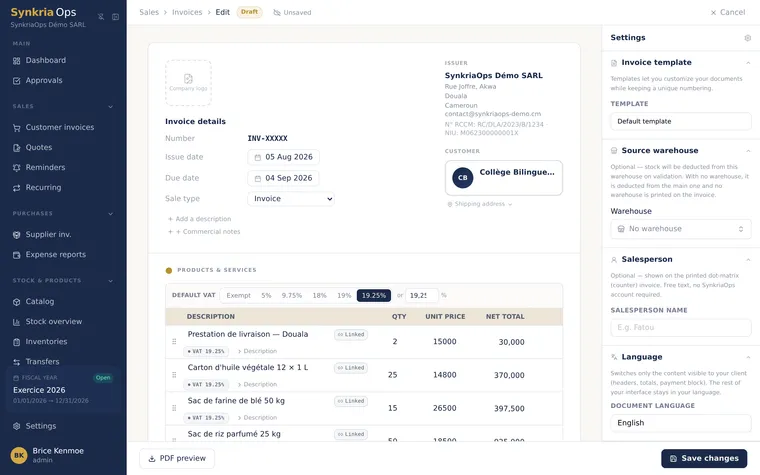
Entering the lines: the total including tax recalculates with each line added. -
Verify mandatory OHADA requirements
Before validating, ensure the invoice includes:
- Sequential non-reusable number (FAC-2026-000XXX)
- Seller legal name and address
- Seller tax ID
- Customer legal name
- Issue date and due date
- Line items with VAT rates
- Amounts excl. VAT, VAT amount, total incl. VAT
-
Preview the PDF
Click Preview to check the rendering. The PDF automatically includes an authenticity QR code allowing your customer to verify the invoice at
https://app.synkriaops.com/v/{token}.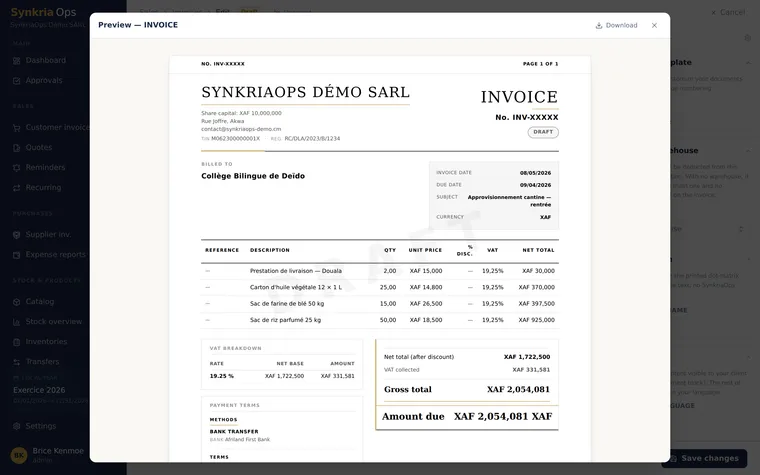
The PDF preview before validation: OHADA mentions, NIU, RCCM and QR code. -
Validate the invoice
Click Validate. SynkriaOps immediately creates the accounting entry in the VTE journal:
VTE Customer invoice — 1,788,750 XAF incl. VAT Account Description Debit Credit 411001 Customer Cabinet Bâtir 1 788 750 706000 Services rendered 1 500 000 4431 VAT collected on sales 288 750 Totals Balanced entry 1 788 750 1 788 750 XAF The invoice is now locked — any modification requires a credit note.
-
Send by email
Click Send by email. The address is pre-filled from the customer record. The PDF with QR code is attached automatically.
Invoice statuses
Section titled “Invoice statuses”| Status | Description | Available actions |
|---|---|---|
| DRAFT | Invoice not yet validated | Edit, Delete, Validate |
| SENT | Validated and sent to customer | Record payment, Send reminder |
| AWAITING PAYMENT | Due date not yet passed | Record partial payment, Send reminder |
| PARTIALLY PAID | Partial payment received | Record balance, Send reminder |
| SETTLED | Fully paid | Export, Archive |
| CANCELLED | Cancelled by credit note | View associated credit note |
Track the payment
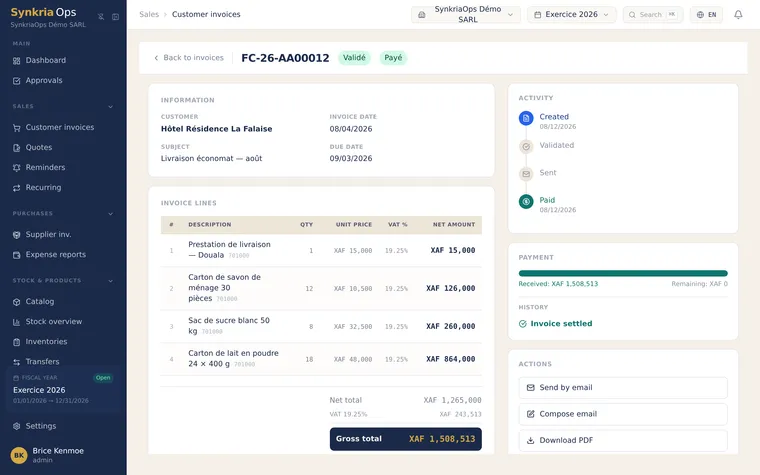
Section titled “Track the payment”After sending, track collection via accounts receivable/payable matching. As soon as a payment is recorded on the customer’s 411xxx account, the invoice status is updated automatically.
Common errors
Section titled “Common errors”| Error | Cause | Solution |
|---|---|---|
| ”Seller tax ID missing” | Incomplete company profile | Add tax ID in Settings → Company |
| ”VAT rate not configured” | OHADA country without configured rate | Settings → VAT → Add rate |
| ”Zero amount” | Line with price at 0 | Enter amount or remove empty line |
| ”Customer has no 411 account” | Contact without sub-account | Check contact record, create sub-account |
See also
Section titled “See also”- Automatic payment reminders — configure reminders for unpaid invoices
- Matching accounts receivable/payable — reconcile payments and invoices
- Recurring invoices — automate invoices for your subscriptions
- Understanding sales statuses — complete invoice lifecycle