Creating a customer
A customer is a buyer contact to whom you issue quotes and invoices. Every time you create a customer, SynkriaOps simultaneously creates a contact record and a dedicated 411xxx SYSCOHADA sub-account — both are linked atomically in a single transaction.
Accessing the form
Section titled “Accessing the form”In the main menu, click Contacts → Customers → New customer button at the top right.
Creating a customer step by step
Section titled “Creating a customer step by step”-
Enter the company name
Enter the exact name of your customer as it will appear on quotes, invoices, and financial statements. For a legal entity, use the full registered name (e.g. SARL Maison des Épices).
-
Fill in tax and contact information
Field Required Description Company name Yes Customer name or registered company name Tax ID (NIU) No Unique Identification Number (Cameroon) — leave blank for foreign customers Email No Main email address (pre-filled on quotes) Phone No Contact number Address No Physical or postal address Foreign identifier No For customers outside the OHADA zone — replaces the NIU (RCCM, foreign VAT number, etc.) 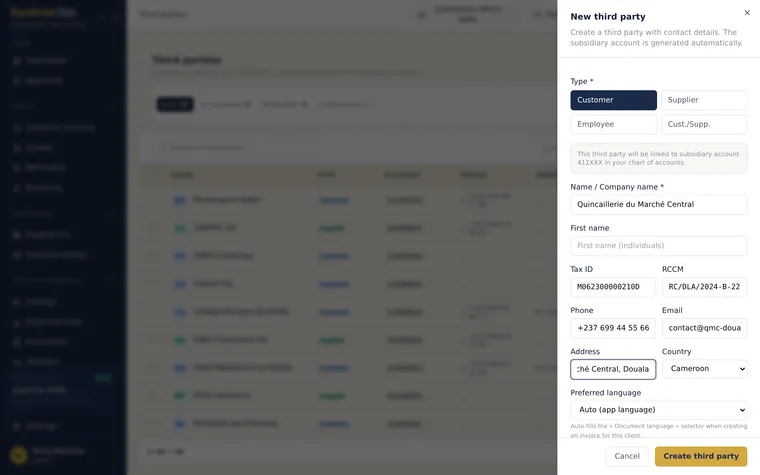
The New customer form: company name, NIU and contact details. -
Confirm creation
Click Save. SynkriaOps performs in a single transaction:
- creation of the customer record
- creation of the 411xxx sub-account (e.g. 411025) in your SYSCOHADA chart of accounts
The 411xxx number is assigned sequentially — the next available number is calculated automatically. You cannot choose the number manually.
Viewing the associated SYSCOHADA sub-account
Section titled “Viewing the associated SYSCOHADA sub-account”From the customer record, click View SYSCOHADA account to open the 411xxx sub-account in your chart of accounts. You can then navigate to the general ledger for this account to view all accounting entries posted for this customer.
Editing customer information
Section titled “Editing customer information”Open the customer record (Contacts → Customers → click the name) then click Edit. You can update all contact and tax information. The 411xxx sub-account number does not change after creation.
Searching for a customer
Section titled “Searching for a customer”The search bar at the top of the Contacts → Customers list accepts:
- The name or part of the name (e.g. Maison)
- The tax ID (NIU)
- The SYSCOHADA account number (e.g. 411025)
Archiving a customer
Section titled “Archiving a customer”- Open the customer record.
- Click the ··· menu (actions) → Archive.
- Confirm the archiving.
Archiving has the following effects:
- The customer no longer appears in selection lists on quotes and invoices
- The associated 411xxx sub-account is deactivated in the chart of accounts
- History is fully preserved — all past accounting entries, invoices, and quotes remain accessible in read-only mode
Bulk importing a customer list
Section titled “Bulk importing a customer list”If you have a CSV file of customers to import (migration from another software, Excel list), use the bulk import:
- Go to Contacts → Customers → Import.
- Download the CSV template provided by SynkriaOps.
- Fill in your data in the template (one row per customer).
- Upload the completed file and check the preview.
- Click Import to confirm.
Expected CSV format:
| Column | Required | Example |
|---|---|---|
nom | Yes | SARL Maison des Épices |
type | Yes | CLIENT |
niu | No | M123456789012A |
email | No | contact@maisondesepices.cm |
telephone | No | +237 691 234 567 |
adresse | No | BP 1234, Douala |
When a duplicate is detected (same NIU or exact same name), SynkriaOps flags the row in the import report. You can choose to skip the duplicate or force creation.
Special case: foreign customer
Section titled “Special case: foreign customer”For a customer based outside the OHADA zone (France, European Union, etc.):
- Do not fill in the NIU field
- Use the Foreign identifier field to enter their intra-community VAT number (e.g. FR12345678901) or any other local tax reference
- The 411xxx sub-account is created in the same way
- On export invoices, VAT may be 0% depending on your configuration (see Configuring VAT)
Common errors
Section titled “Common errors”| Error | Cause | Solution |
|---|---|---|
| ”Name already in use” | A customer with this exact name exists | Check the list, or refine the name (e.g. add the city) |
| “Invalid NIU” | Format does not match Cameroon standard | Check format (letter + 12 digits + letter) or leave blank |
| ”Unable to create sub-account” | Technical error creating the 411xxx account | Refresh and try again, or contact support |
| ”Missing column in CSV” | CSV file does not match the template | Use the template downloaded from SynkriaOps |
Further reading
Section titled “Further reading”- Creating a supplier — add a supplier contact with a 401xxx sub-account
- Managing SYSCOHADA sub-accounts — understand the chart of accounts hierarchy and contact sub-accounts
- Creating a quote — use a customer in a sales cycle
- Creating a customer invoice — invoice directly without going through a quote