Creating a quote
By the end of this guide, you will know how to draft a complete quote and send it to your customer as a PDF. SynkriaOps automatically assigns the sequential number (DEV-2026-000001).
Accessing the form
Section titled “Accessing the form”In the main menu, click Sales → Quotes → New quote button at the top right.
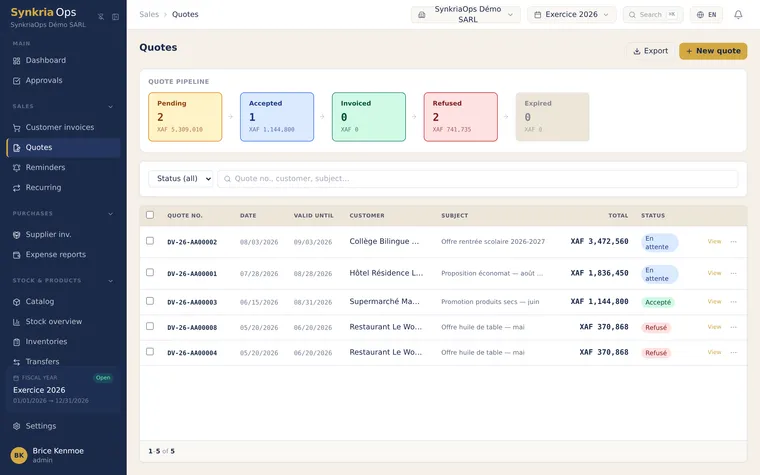
Creating a quote step by step
Section titled “Creating a quote step by step”-
Select the customer
In the Customer field, type the name or tax ID to search among your existing contacts. Select the customer — SynkriaOps automatically loads the associated 411xxx sub-account.
If the customer doesn’t exist yet, click + Create new customer to add them on the fly without leaving the form.
-
Fill in general information
Field Description Quote date Issue date (pre-filled with today’s date) Expiry date Quote validity period (e.g. 30 days) Internal reference Your project reference (optional) Payment terms E.g.: 30 days net, on order, 50% deposit Notes / Terms General conditions, special remarks -
Add product or service lines
For each line, fill in:
- Description: choose from the product catalogue or enter freely
- Quantity: number of units, hours, days, etc.
- Unit price excl. VAT: amount before tax in XAF
- VAT rate: select the applicable rate (19.25% Cameroon by default, configurable per OHADA country)
The total incl. VAT is calculated automatically for each line.
Example:
Description Qty Unit price VAT Total incl. VAT Q1 accounting audit 1 850,000 XAF 19.25% 1,013,625 XAF Team training (2d) 2 175,000 XAF 19.25% 418,188 XAF Total 1,200,000 XAF excl. 1,431,813 XAF incl. Add as many lines as needed with the + Add a line button.
-
Check the totals
The summary at the bottom of the form displays:
- Subtotal excl. VAT
- VAT amount (detailed per rate if multiple rates apply)
- Total incl. VAT in XAF
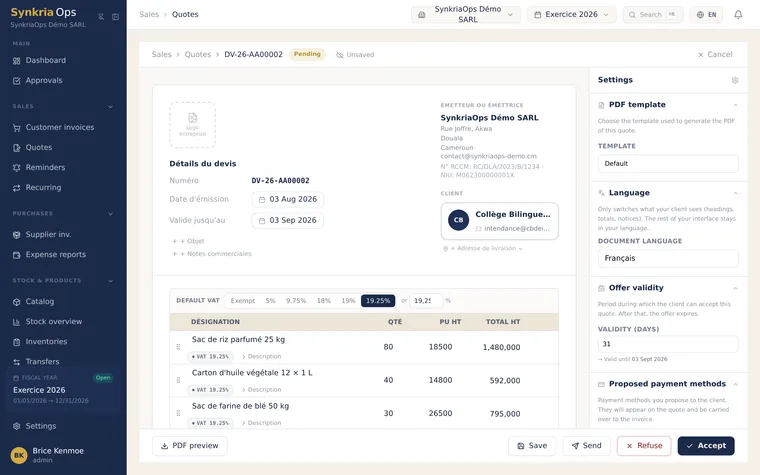
The quote form: service lines with totals recalculated as you type. -
Preview the PDF
Click Preview to see the PDF rendering before sending. Check:
- Your company logo and details
- Customer information and tax ID
- Assigned quote number (DEV-2026-000001)
- Line items and totals
- Payment terms and expiry date
-
Save or send
Click Save — the quote moves to DRAFT status. You can edit it at any time before sending.
Click Send by email — enter the recipient’s address (pre-filled from the customer record), customize the subject and message, then confirm. The status changes to SENT.
Quote statuses
Section titled “Quote statuses”| Status | Description | Available actions |
|---|---|---|
| DRAFT | Quote being written, not yet sent | Edit, Delete, Send |
| SENT | Sent to customer by email | Mark accepted, Mark refused, Follow up |
| ACCEPTED | Customer confirmed agreement | Convert to invoice, Duplicate |
| REFUSED | Customer declined | Duplicate, Archive |
| EXPIRED | Expiry date passed without response | Duplicate and update |
| CONVERTED | Invoice created from this quote | View associated invoice |
Common errors
Section titled “Common errors”| Error | Cause | Solution |
|---|---|---|
| ”Customer required” | No contact selected | Select or create the customer |
| ”Invalid unit price” | Negative or non-numeric amount | Enter a positive amount in XAF |
| ”VAT rate not configured” | VAT missing for this country | Configure the rate in Settings → VAT |
| ”Expiry date in the past” | Date earlier than today | Choose a future date |
See also
Section titled “See also”- Converting a quote to an invoice — turn an accepted quote into an accounting invoice
- Creating a customer — add a contact with a 411xxx sub-account
- Creating a product or service — populate the catalogue for faster entry
- Understanding sales statuses — complete lifecycle of quotes and invoices