Configuring your chart of accounts
By the end of this guide, you will be able to locate any of the 745 pre-loaded SYSCOHADA accounts, create your own sub-accounts and deactivate the ones you don’t use.
The chart of accounts is the backbone of your SynkriaOps tenant. As soon as your tenant is created, 745 SYSCOHADA revised 2019 accounts are generated automatically, organized into 9 classes, bilingual French/English. You don’t need to create these accounts manually — they’re available from day one.
Understand the 9 SYSCOHADA classes
Section titled “Understand the 9 SYSCOHADA classes”The SYSCOHADA revised 2019 chart of accounts is organized into 9 numbered classes. Understanding this structure will help you instantly locate any account.
| Class | Name | Typical accounts |
|---|---|---|
| Class 1 | Permanent capital | 101000 Share capital, 121000 Retained earnings, 161000 Borrowings |
| Class 2 | Fixed assets | 211000 Land, 221000 Buildings, 241000 Equipment |
| Class 3 | Inventories | 311000 Merchandise, 321000 Raw materials |
| Class 4 | Counterparties | 401xxx Suppliers, 411xxx Customers, 422xxx Employees |
| Class 5 | Treasury | 521xxx Banks, 571xxx Cash |
| Class 6 | Ordinary activity expenses | 601000 Merchandise purchases, 621000 Transport, 661000 Interest |
| Class 7 | Ordinary activity income | 701000 Merchandise sales, 764000 Financial income |
| Class 8 | Extraordinary income/expenses | 821000 HAO income, 831000 HAO expenses |
| Class 9 | Management accounting | 901000 to 999000 — analytical by axis |
Class 4 accounts are the most frequently used in day-to-day operations. Customer sub-accounts (411xxx) and supplier sub-accounts (401xxx) are created automatically when creating a counterparty.
Navigating the chart of accounts
Section titled “Navigating the chart of accounts”Accessing the chart
Section titled “Accessing the chart”From the sidebar, click Settings → Chart of accounts.
You’ll see a paginated list of all accounts in the tenant, sorted by number in ascending order by default.
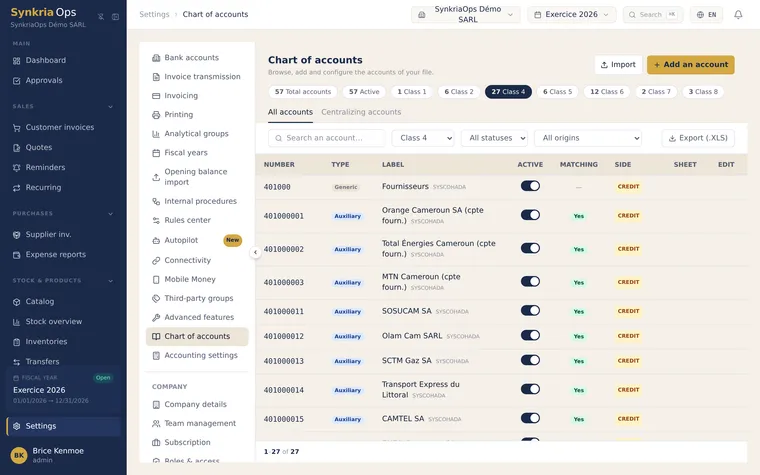
Searching for an account
Section titled “Searching for an account”The search bar at the top of the list accepts two types of queries:
- By number: type
521to display all bank accounts, or411001to display exactly account 411001. - By label (French or English): type
supplierorfournisseurto find all supplier-related accounts.
Search is instant and works across French and English labels simultaneously — useful if your team is bilingual.
Filtering by class
Section titled “Filtering by class”The class selector at the top left lets you display only accounts from a given class. Select Class 5 to see all your treasury accounts, for example.
Creating a custom sub-account
Section titled “Creating a custom sub-account”The pre-created SYSCOHADA chart covers generic accounts. Your business may need specific sub-accounts — for example, a separate customer account for each major client, or a dedicated bank account for a subsidiary.
Concrete example: you want to create account 411025 for your client “MINFI – Directorate of Financial Resources and Materials”.
-
Go to Settings → Chart of accounts.
-
Click the “New account” button at the top right.
-
Enter the account number:
411025— The number must follow the SYSCOHADA hierarchy (the first 3 digits indicate the parent heading). -
Enter the French label:
MINFI – DRFMand the English label:MINFI – DRFM(identical if no relevant translation). -
Select the type:
Counterparty - Customer(class 41). -
Click “Create account”.
The new account is immediately available in accounting voucher entry forms.
Deactivating an unused account
Section titled “Deactivating an unused account”If an account is not useful to you (for example, an inventory account when you’re a service provider), you can deactivate it so it no longer appears in entry dropdowns.
-
Find the account in the chart of accounts (search by number or label).
-
Click the three dots (⋯) to the right of the account row.
-
Select “Deactivate”.
-
Confirm the deactivation.
The account disappears from entry dropdowns, but remains visible in the chart with an “Inactive” badge. It can be reactivated at any time.
Special CEMAC accounts to know
Section titled “Special CEMAC accounts to know”Some accounts have particular significance in the CEMAC/OHADA context and are used automatically by SynkriaOps in certain operations.
| Account | Label | Used by |
|---|---|---|
4431 | Output VAT on sales (collected) | Customer invoicing — automatically posted when VAT is active |
4452 | Recoverable VAT on purchases (deductible) | Supplier invoices — deductible per settings |
444 | State — VAT payable / balance due | Monthly or quarterly VAT calculation |
101000 | Share capital | Manual entry during incorporation |
13 | Net income for the year | Automatically populated during fiscal year closing — 1301 profit / 1309 loss |
185000 | Firm liaison account | Multi-tenant cabinet mode — manage client files |
Managing collective accounts
Section titled “Managing collective accounts”Collective accounts (411000 for all customers, 401000 for all suppliers) must never receive direct entries — all entries must go through their individual sub-accounts (411001, 411002…).
SynkriaOps automatically blocks entry on a collective account if sub-accounts exist. This is a SYSCOHADA protection: the subsidiary ledger and the general ledger must be consistent.
Importing a custom chart of accounts
Section titled “Importing a custom chart of accounts”If you’re migrating from another software and already have a custom chart of accounts, you can import it via Settings → Chart of accounts → Import. The expected file is an Excel spreadsheet (.xlsx) with the columns: Number, French label, English label, Type.
Before import, SynkriaOps verifies number consistency with the SYSCOHADA nomenclature and flags conflicts with existing accounts.