Signing in to SynkriaOps
SynkriaOps is a fully online application. No installation is required — access it from any modern browser, on a computer, tablet or smartphone.
Accessing the application
Section titled “Accessing the application”Open your browser and go to app.synkriaops.com.
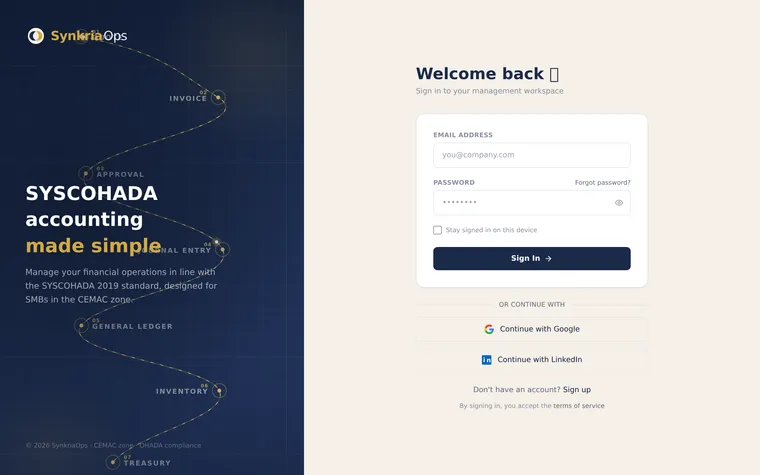
The login page appears immediately. You don’t need to create an account — your administrator sent you an invitation email to activate your access. If that hasn’t happened yet, see Inviting your team.
Signing in
Section titled “Signing in”-
Enter your email address (the one used during the invitation).
-
Enter your password.
-
(Optional) Check “Remember me” if you’re on a secure personal device.
-
Click “Sign in”.
-
If your account is linked to multiple tenants, a selection screen appears. Choose the tenant to work on — you can switch at any time via the tenant switcher in the header.
The “Remember me” option
Section titled “The “Remember me” option”Without this option, your session is maintained as long as the browser is open. When you close the browser, you are logged out and will need to sign in again next time.
With the option checked, your session stays active for 30 days, even after closing the browser. When you reopen app.synkriaops.com, you’ll be automatically signed back in.
Good to know: your session lasts 15 minutes and is renewed automatically as long as you are active — nothing to do on your side. With “Remember me”, this renewal remains possible for 30 days; without this option, it stops when you close the browser. After prolonged inactivity, you are signed out automatically, for security.
Selecting your active tenant
Section titled “Selecting your active tenant”If you’re linked to a single tenant, you land directly on that tenant’s dashboard after signing in.
If you have access to multiple tenants (common for accounting firms or multi-company executives), an intermediate screen lists the available tenants. You can:
- Click a tenant to open it directly.
- Use the search bar to filter by name if the list is long.
Once in the application, switch tenants via the selector in the top left of the header — no need to sign out and back in to switch between companies.
Common error messages
Section titled “Common error messages”| Error | Cause | Solution |
|---|---|---|
| ”Email or password incorrect” | Wrong credentials | Check password case (case-sensitive). Use Forgot password if needed. |
| ”Your account has not been activated yet” | Invitation received but link not used | Open the invitation email and click “Activate my account”. If the link has expired (> 7 days), ask your ADMIN to resend the invitation. |
| ”Your session has expired, please sign in again” | Session inactive too long | Sign in normally. Unsaved data may be lost — save regularly. |
| ”Access to this tenant revoked” | An ADMIN deactivated your access | Contact your SynkriaOps administrator or support@synkriaops.com. |
| ”Too many sign-in attempts” | Multiple consecutive failed attempts | Wait 15 minutes before retrying, or use the password reset. |
Signing in on mobile
Section titled “Signing in on mobile”SynkriaOps is responsive — the interface automatically adapts to smartphones and tablets. Signing in works exactly the same way as on a computer.
Tips for an optimal mobile experience:
- Use Chrome or Safari for the best rendering.
- Add app.synkriaops.com to your phone’s home screen (browser menu → “Add to home screen”) to access it like a native app.
- On mobile, the sidebar automatically collapses to icons — tap the hamburger icon to display it full screen.
Automatic sign-out
Section titled “Automatic sign-out”SynkriaOps automatically ends your session in the following cases:
- Extended inactivity: no action for more than 2 hours on the same tab.
- Admin revocation: if your tenant access is deactivated by an administrator.
- Forced sign-out: if you click “Sign out of all devices” from Settings → Security → Sessions.
In all these cases, you’ll be redirected to the login page with an explanatory message.
Signing out manually
Section titled “Signing out manually”To sign out:
- Click your avatar in the top right of the header. 2. Select “Sign out”.
You’ll be redirected to the sign-in page. On a shared device, verify you’re truly signed out by trying to access the URL again — you should see the login page.