Switching between client files
In firm mode, the file selector lets you instantly switch from one client file to another. Each file change is recorded in an access log and triggers a complete reload of the active environment’s data.
Switching the active file
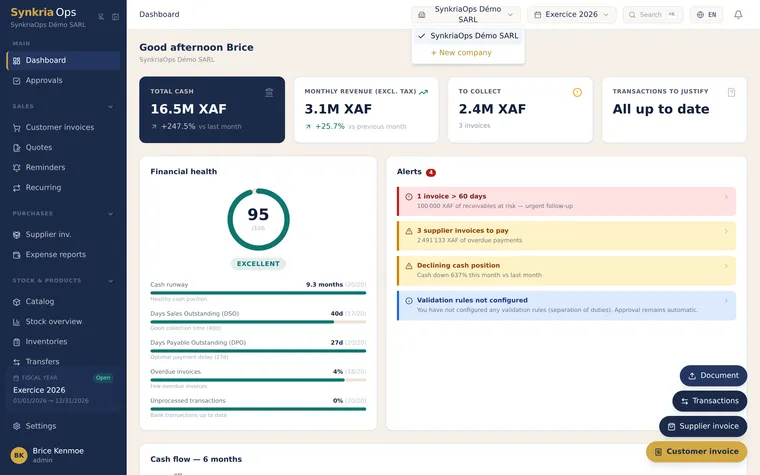
Section titled “Switching the active file”- Click the active file name displayed in the top left of the application header — this is the file selector button.
- The selection panel opens and displays the list of all your accessible files.
- Click the desired file.
- The application reloads within a few seconds with the selected file’s data.
What happens when you switch files
Section titled “What happens when you switch files”Switching files triggers complete isolation:
- The previous file’s data is immediately cleared from view
- The chart of accounts, contacts, entries, fiscal years, and settings of the new file are loaded
- Your role may differ depending on the file (EXPERT in one, ADMIN in another)
- The interface displays the new file’s name and country in the header
Access log: each file switch is recorded with your identifier, the target file, and a timestamp. This log is accessible to the ADMINs of the relevant files.
Active file indicator
Section titled “Active file indicator”The active file indicator is always visible in the application header:
| Element | Description |
|---|---|
| File name | Active client’s company name |
| Flag / Country | File’s OHADA country (Cameroon 🇨🇲, Côte d’Ivoire 🇨🇮, etc.) |
| Role badge | Your role in this file: EXPERT or ADMIN |
Finding a file quickly
Section titled “Finding a file quickly”The file selector offers several search modes:
Type all or part of the client name in the search field. The list filters in real time (e.g. typing Maison shows SARL Maison des Épices, Maison Bello SUARL, etc.).
Type the client’s tax ID. Useful if you have several files with similar names.
Files you consult frequently can be pinned to appear at the top of the list. Click the star ★ next to the file to pin or unpin it.
Pinning favorite files
Section titled “Pinning favorite files”For even faster access to your most active files:
- Open the file selector.
- Hover over the file to pin.
- Click the ★ (star) icon that appears on the right.
- The file moves to the top of the list, in the Favorites section.
Pins are personal — they are only visible to you and do not modify the view of other accountants accessing the same files.
Common errors
Section titled “Common errors”| Error | Cause | Solution |
|---|---|---|
| ”File not found” | The file has been deleted or you no longer have access | Contact the file ADMIN to verify your permissions |
| ”Loading loop” | Network issue during the switch | Refresh the page (F5); if the problem persists, clear the browser cache |
| ”Session expired during switch” | Session expired during the operation | Log back in — your data is not lost |
| Expected file does not appear in the list | File archived or access revoked | Search in “All files → Archived” or contact the ADMIN |
Further reading
Section titled “Further reading”- Managing client files — create, view, and archive client files
- Accounting expert permissions and limits — what you can and cannot do in a file