Opening a fiscal year
A fiscal year is the reference period for all your accounting. Every accounting document, every journal, every entry belongs to a specific fiscal year. You cannot create any document without an open fiscal year covering the relevant date. SynkriaOps alerts you immediately if you attempt to create an entry that falls outside any open fiscal year.
Fiscal year created automatically on sign-up
Section titled “Fiscal year created automatically on sign-up”When you create your SynkriaOps company file, a first fiscal year is automatically created for the current calendar year (1 January → 31 December). You can start entering documents immediately without any additional setup.
If your accounting year does not follow the calendar year (for example: 1 July → 30 June), you can adjust the dates during the initial company setup in Settings → Company.
Creating an additional fiscal year
Section titled “Creating an additional fiscal year”You will need to create a new fiscal year in two situations:
- Beginning of a new accounting year (the previous year is closed or about to be closed).
- Historical data entry (you wish to enter entries from prior years).
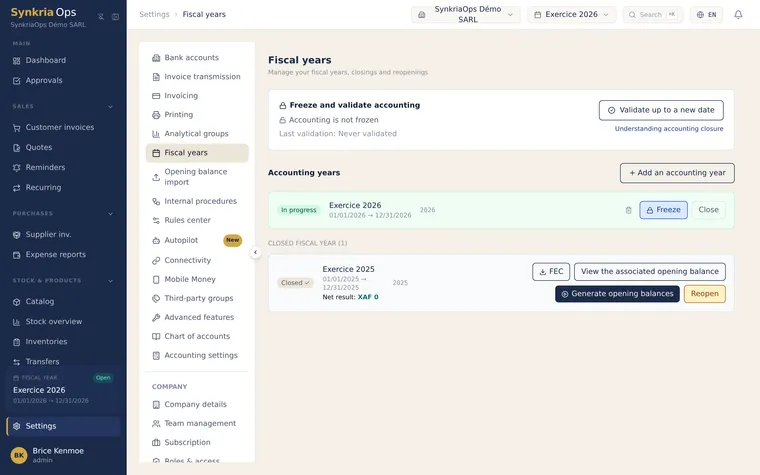
- From the navigation bar: Settings → Fiscal Years. 2. Click + New
fiscal year. 3. Enter the start date and end date (DD/MM/YYYY
format). 4. Enter a descriptive label (e.g.
Fiscal year 2026,FY 01/07/2025 - 30/06/2026). 5. Click Create. The status automatically changes to OPEN.
Non-overlap rule
Section titled “Non-overlap rule”SynkriaOps blocks the creation of a fiscal year whose dates overlap with an existing one. For example, if you already have a fiscal year 01/01/2026 → 31/12/2026, you cannot create a fiscal year 01/07/2026 → 30/06/2027 — the two periods overlap in the second half of 2026.
| Situation | Behaviour |
|---|---|
| Non-overlapping dates | Fiscal year created normally |
| Partial overlap | Creation blocked — error message indicating the conflicting period |
| Identical to an existing fiscal year | Creation blocked |
For consecutive fiscal years, ensure the end date of year N is the day before the start date of year N+1. Example: 31/12/2025 and 01/01/2026.
Opening a prior year for historical data entry
Section titled “Opening a prior year for historical data entry”If you are taking over existing accounting records (migrating from another software or acquiring a business), you can create prior-year fiscal years to enter historical entries.
- Create a fiscal year with dates corresponding to the relevant year (e.g.
01/01/2024 → 31/12/2024). 2. Enter your opening balance entries and the year’s transactions. 3. Once the migration is complete and verified, close the fiscal year to lock it. 4. Opening balances will automatically carry forward to the next fiscal year.
Refer to the dedicated article on accounting data migration for the full procedure for importing balances from a legacy system.
Managing multiple open fiscal years simultaneously
Section titled “Managing multiple open fiscal years simultaneously”SynkriaOps allows multiple fiscal years to have OPEN status simultaneously (for example, if you are still finalising fiscal year 2025 while you have already started entering 2026 documents), up to a maximum of 3 fiscal years open at once. When creating a document, SynkriaOps automatically selects the fiscal year corresponding to the document date.
Common errors
Section titled “Common errors”| Error | Cause | Solution |
|---|---|---|
| ”No open fiscal year for this date” | The document date falls outside all open fiscal years | Create a fiscal year covering that date, or correct the document date |
| ”Date overlap detected” | The new fiscal year’s dates conflict with an existing one | Adjust the dates to eliminate any overlap |
| Fiscal year missing from the list | The fiscal year has been closed | A closed fiscal year remains visible in read-only mode — an ADMIN can reopen it if needed |
| Reversed dates | End date earlier than start date | Correct the dates before confirming |
What’s next?
Section titled “What’s next?”- Import historical accounting data — Import your opening balances from a legacy accounting system (SAGE, CIEL, Excel).
- Understanding opening balances — How closing balances from one fiscal year become the opening balances of the next.
- Closing a fiscal year — Complete pre-closing checklist and step-by-step procedure to lock the fiscal year safely.