Importing a bank statement
By the end of this page, you will know how to download your bank statement,
import it into SynkriaOps and process the transactions it creates. Each imported
transaction automatically creates a record with status TO_PROCESS in the BNQ
bank journal linked to the account, ready for posting.
Choosing the statement format
Section titled “Choosing the statement format”SynkriaOps accepts bank statements in OFX, CSV and Excel formats from the main CEMAC partner banks:
| Bank | Recommended format | Notes |
|---|---|---|
| Afriland First Bank | OFX | Export from the Afriland online portal |
| BICEC | CSV (; separator) | Columns: Date ; Description ; Debit ; Credit ; Balance |
| SCB Cameroun | Excel .xlsx | Signed amount column (debit = negative) |
| Ecobank Cameroun | OFX | Export from Ecobank Online |
| UBA Cameroun | CSV | Request the “accounting export” format |
| Other bank | CSV or OFX | Map columns if non-standard |
Prerequisites
Section titled “Prerequisites”Before importing, verify that:
- The bank account is configured in Settings → Bank accounts (see Setting up a bank account).
- The associated
521xxxaccount exists in the SYSCOHADA chart of accounts. - The fiscal year covering the statement period is open.
Downloading the statement from your online banking portal
Section titled “Downloading the statement from your online banking portal”-
Log in at https://www.afrilandfirstbank.com → Online customer portal.
-
Go to My accounts → Transaction history.
-
Choose the desired period (e.g.
01/04/2026 – 30/04/2026). -
Click Export → OFX format.
-
Save the
.ofxfile to your computer.
-
Log in to your BICEC online portal.
-
Go to Account statement → Download.
-
Select the period and CSV format.
-
Save the
.csvfile to your computer.
Consult your bank’s help documentation for statement export. For non-standard formats, SynkriaOps provides a column mapping wizard during import (see step 5 below).
Importing the statement into SynkriaOps
Section titled “Importing the statement into SynkriaOps”-
In the main menu, go to Cash & Banking → Transactions → Imports.
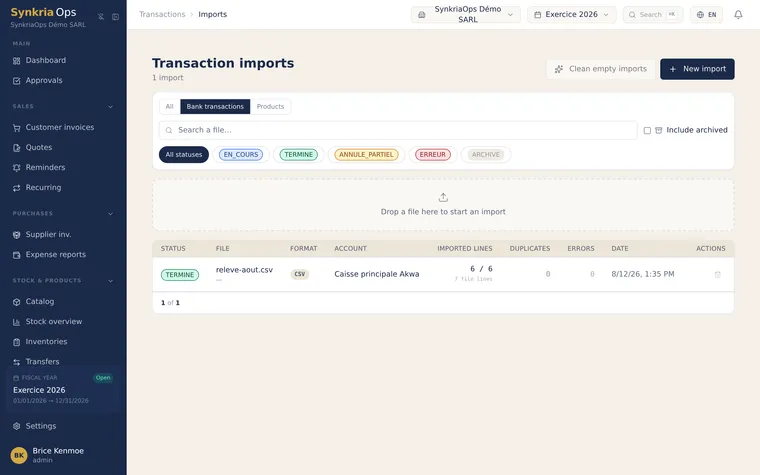
The import history: each session with its account, format and outcome. -
Click New.
-
In the Bank account field, select the relevant account (e.g.
Afriland – Main current account). -
Drag and drop your file into the import zone, or click Browse to select it. Maximum size: 20 MB per file (OFX, CSV, MT940, Excel).
-
(Non-standard CSV only) The mapping wizard opens if columns are not automatically recognized. Match each column from your file to the corresponding field (Date, Description, Debit, Credit, Balance).
-
The preview is displayed with:
- Number of detected transactions
- Period covered (e.g.
01/04/2026 – 30/04/2026) - Total debits (e.g.
3,450,000 XAF) and total credits (e.g.1,890,000 XAF) - Statement closing balance
- Potential duplicates detected (flagged in orange)
-
Review the preview. If duplicates are flagged, click View duplicates to decide whether to include or exclude them.
-
Click Confirm import. Transactions are created with status
TO_PROCESSin theBNQjournal.
Processing imported transactions
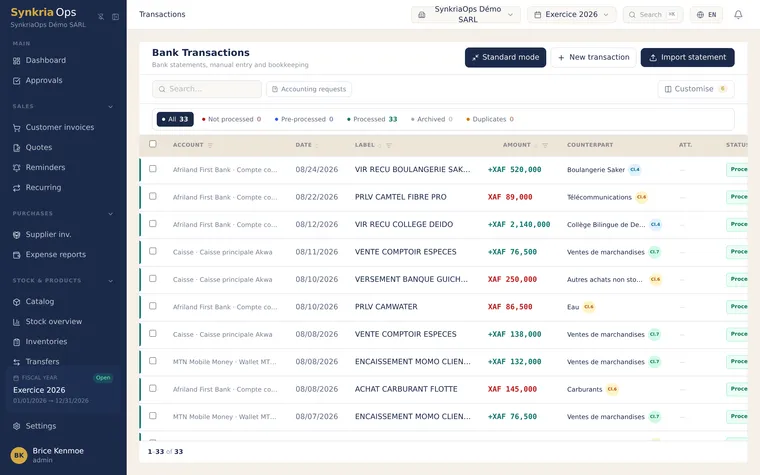
Section titled “Processing imported transactions”After import, each transaction must be assigned an offset accounting account:
-
Go to Cash & Banking → Transactions.
-
Filter by status
TO_PROCESSand by bank account. -
For each transaction, click Process:
- Verify the description and amount.
- Select the offset account (e.g.
411xxxfor a customer receipt,401xxxfor a supplier payment,521xxxfor an inter-account transfer). - If an accounting document already exists (paid customer invoice, settled supplier invoice), click Reconcile with a document to link the transaction to that document.
-
Click Validate. The transaction moves to status
POSTED. -
Once all transactions are processed, run a bank reconciliation to confirm that the accounting balance matches the statement.
Handling duplicates at import
Section titled “Handling duplicates at import”SynkriaOps detects potential duplicates by comparing each transaction in the
imported file against the combination date + amount + description of
transactions already present in the period.
| Signal | Meaning | Recommended action |
|---|---|---|
| Orange background – “Potential duplicate” | Same date + amount but slightly different description | Manually verify if it is a truly distinct transaction |
| Red background – “Certain duplicate” | Identical date + amount + description triplet | Exclude from import (already present) |
Fixing common errors
Section titled “Fixing common errors”| Error | Cause | Solution |
|---|---|---|
| ”File format not recognized” | Wrong extension or corrupted file | Re-export from the banking portal without modifying the file |
| ”Date column not found” | CSV with non-standard separator (tab, |) | Use the mapping wizard or convert to OFX |
| ”Fiscal year closed for this period” | Statement period covers a closed fiscal year | Import only transactions from the open fiscal year; contact your accountant for closed-year transactions |
| ”Account 521xxx not found” | Sub-account not created in the chart of accounts | Create the sub-account then re-run the import |
| ”File size exceeded” | File too large (>20 MB) | Split into monthly statements |