Setting up a bank account
By the end of this page, you will know how to declare each bank account or Mobile Money wallet in SynkriaOps and link it to its SYSCOHADA class-5 account — the prerequisite for any statement import or reconciliation. This setup is done only once per account.
Prerequisites
Section titled “Prerequisites”- The Accountant or Administrator role on the company file.
- An active fiscal year (otherwise: Create your file → fiscal year).
- Your bank details: RIB or IBAN, internal account number, branch name.
Accessing the configuration
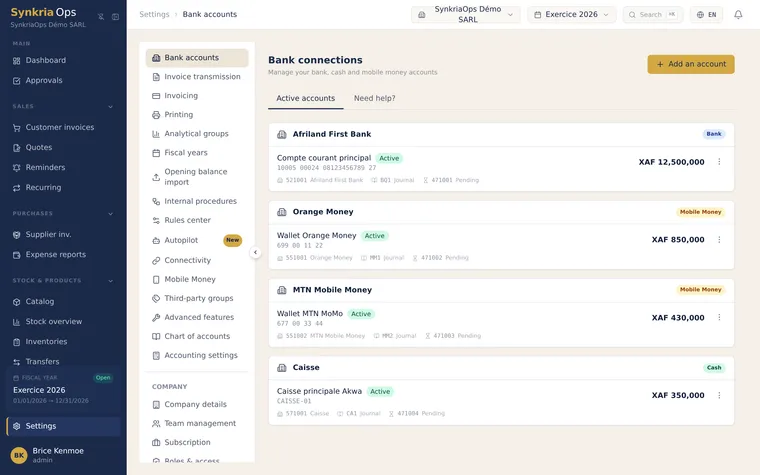
Section titled “Accessing the configuration”Two distinct Settings pages host your treasury accounts:
- Settings → Bank accounts for standard bank accounts;
- Settings → Mobile Money for Orange Money, MTN MoMo and other wallets.
-
In the main menu, click Settings.
-
Select Bank accounts (or Mobile Money for a wallet).
-
Press Add an account.
Setting up a standard bank account
Section titled “Setting up a standard bank account”-
Account name: enter a clear label visible in menus (e.g.
Afriland – Main current account,BICEC – Savings account). -
Partner bank: select your bank from the dropdown. Available banks:
- Afriland First Bank
- BICEC (Banque Internationale du Cameroun pour l’Épargne et le Crédit)
- SCB Cameroun (Société Commerciale de Banque)
- Ecobank Cameroun
- UBA Cameroun
- BGFIBank Cameroun
- Other (manual CSV format)
-
IBAN / RIB: enter your international account identifier (e.g.
CM21 10005 00001 12345678901 37). Optional but recommended for automatic reconciliation. -
Associated accounting account: choose or create a
521xxxsub-account from the SYSCOHADA chart of accounts.- Example:
521100— Afriland First Bank CG - If the sub-account does not yet exist, click Create a new sub-account
and enter the number (between
521100and521999) along with its label.
- Example:
-
Bank journal: SynkriaOps automatically creates a
BNQjournal for your first account. For a second account, click Create a new journal and name itBNQ2(orBNQ-BICEC, etc.). -
Click Save.
Setting up an Orange Money wallet
Section titled “Setting up an Orange Money wallet”-
Go to Settings → Mobile Money.
-
Press Add a Mobile Money account.
-
Operator: select
Orange Money Cameroon. -
Wallet phone number: enter the number linked to the wallet (e.g.
699 78 76 94). The parser uses this number to detect transactions where you are the sender or the recipient. -
Merchant code (optional): if you use an Orange Money Business merchant account, enter your merchant code (e.g.
CM-12345). Leave blank for a personal wallet. -
Associated SYSCOHADA account: choose a
521xxxsub-account. Recommended: create521500— Orange Money to distinguish Mobile Money flows from standard bank flows. -
Click Save.
Verifying the 521xxx accounting account
Section titled “Verifying the 521xxx accounting account”After configuration, confirm that the sub-account exists in your SYSCOHADA chart of accounts:
-
Go to Settings → Chart of accounts.
-
Search for
521in the filter bar. -
Confirm your sub-account appears with the correct label and a zero balance (if it was just created).
Creating a second bank journal (BNQ2)
Section titled “Creating a second bank journal (BNQ2)”If you have multiple bank accounts, each one must have its own journal to comply with the SYSCOHADA rule of one journal per treasury account:
-
Go to Accounting → Journals.
-
Click Add a journal.
-
Type:
Bank. -
Code:
BNQ2(orBNQ-BICEC,BNQ-ECO, etc.). -
Default offset account: select the corresponding
521xxxaccount. -
Click Save.
-
Return to Settings → Bank accounts and link this journal to your second bank account.
Fixing common errors
Section titled “Fixing common errors”| Error | Cause | Solution |
|---|---|---|
| ”Accounting account not found” | The 521xxx sub-account was not created | Create it in the Chart of accounts before configuring the bank account |
| ”Journal already linked to another account” | A BNQ journal can only be linked to one account | Create a dedicated BNQ2 journal |
| ”Invalid phone number” | Format with spaces or hyphens not accepted | Enter without spaces: 699787694 |
| ”Merchant code not recognized” | Code not activated on the Orange Business side | Leave the field blank or contact Orange Business Cameroon |