Creating a manual transaction
By the end of this page, you will know how to record by hand a transaction that does not come from an imported statement: a cash deposit, fees charged by the bank, a one-off Mobile Money payment. You will also know how to keep it from becoming a duplicate when a statement is imported later.
Prerequisites
Section titled “Prerequisites”- The account is already declared in Settings → Bank accounts, whether it is a bank, a cash register or a Mobile Money wallet. If not, start with Setting up a bank account. A disabled account no longer appears in the list.
- You have the Administrator or Accountant role in the company. The CFO role can post an existing transaction but cannot create one.
- An open fiscal year covers the transaction date. Without it, the transaction can be created but not posted.
When to enter a transaction by hand
Section titled “When to enter a transaction by hand”Manual entry complements statement import; it does not replace it. It is useful in these cases:
| Situation | Example |
|---|---|
| Cash transaction | Counter sale paid in cash, office supplies paid in cash |
| Bank with no usable export | Statement received on paper only |
| Transaction known before the statement | Incoming transfer confirmed by advice, monthly statement not yet available |
| One-off fees or commissions | Account maintenance fees, commission on an international transfer |
| Isolated Mobile Money transaction | MTN MoMo payment (MTN Mobile Money statement import is not available yet; only Orange Money Cameroun can be imported) |
Entering the transaction
Section titled “Entering the transaction”-
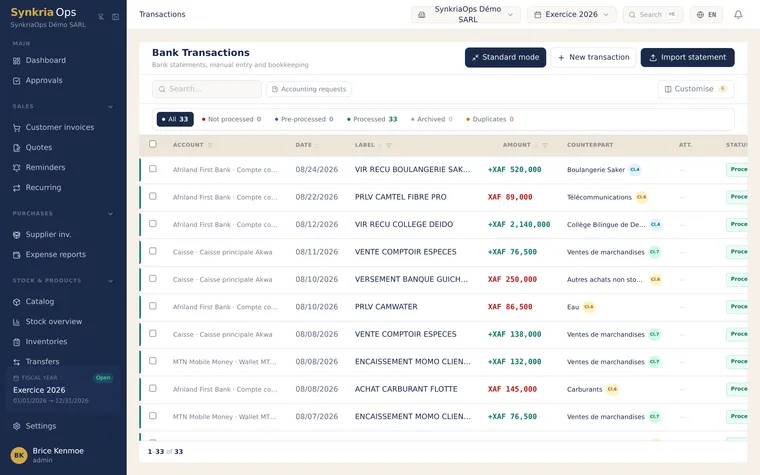
In the main menu, open Cash & banking → Transactions. The Bank Transactions page opens.
-
Click New transaction, top right. If the list is still empty, the button is called Manual transaction. The New manual transaction window opens.
-
Operation type: choose Inflow (credit) for money received or Outflow (debit) for money paid out. Inflow is selected by default.
-
Bank account: select the account. Each line shows the name of the bank, cash register or operator, then the account name.
-
Value date: today’s date is suggested; replace it with the actual date of the transaction.
-
Amount: enter a positive amount, without a sign. The operation type sets the direction. Spaces between thousands and a decimal comma are accepted (
25 000or1250,50). The currency shown on the right of the field is your company’s currency; the form has no currency field. -
Label (optional, 255 characters): preferably copy the wording that will appear on the statement, for example
TRANSFER CUSTOMER XYZ. -
Reference (optional, 50 characters): cheque, transfer or receipt number, for example
VIR-2026-0042. -
Click Create transaction. The Transaction created message confirms the entry.
The Create transaction button stays greyed out until the account, the date and an amount greater than zero are filled in.
-
In the mobile app, open the Transactions tab, then tap View transactions.
-
Tap the + icon top right (New transaction). It only appears if your permissions allow creation.
-
Bank account: pick the account. If you have none, tap Create an account.
-
Direction: Money out (selected by default) or Money in.
-
Amount (XAF): positive amount, with at most two decimals. An ambiguous entry such as
25.000is rejected. -
Value date: in
YYYY-MM-DDformat, for example2026-08-24. -
Label and Reference: optional.
-
Tap Create transaction. You return to the transaction list of the chosen account.
What comes next
Section titled “What comes next”The transaction is created with the Not processed status (To process on mobile). No accounting entry exists yet: it sits in the Not processed tab of the Transactions page, like an imported line, and its Activity tab records that it was created manually.
Two steps follow, each on its own page:
- post it, by assigning an account or reconciling it with an invoice: see Posting a transaction;
- categorize it in analytics if you track spending by project or activity: see Categorizing transactions.
Avoiding duplicates with an import
Section titled “Avoiding duplicates with an import”When you later import a statement for the same account, SynkriaOps compares each line with the account’s existing transactions, manual ones included, within a 7-day window around the statement dates. A line is flagged as a suspected duplicate when it has:
- the same date, the same amount and an identical or very close label;
- or a date within 3 days, the same amount and a similar label.
Suspected duplicates are still imported, with a Duplicate badge, and are listed in the Duplicates tab of the Bank Transactions page. There you choose Mark as legitimate or Delete.
Editing, cancelling or deleting
Section titled “Editing, cancelling or deleting”| What you want to do | Not processed transaction | Processed transaction (entry generated) |
|---|---|---|
| Correct the label or date | Yes, by clicking the label or date in the detail panel | Only if Allow editing the label and date of a posted transaction is enabled, and never if the transaction is matched or the new date changes fiscal year |
| Correct the amount or reference | Not editable on screen: archive, delete, then enter it again | Refused |
| Cancel the posting | Not applicable | See Cancelling a posting |
| Delete | Archive, then Delete permanently | Cancel the posting first: a processed transaction cannot be archived |
The editing option is in Settings → Advanced features. Deletion is permanent. A date cannot be changed to a future date.
Fixing common errors
Section titled “Fixing common errors”| Message shown | Cause | Solution |
|---|---|---|
| Create transaction button greyed out | Account, date or amount missing, or zero amount | Fill in the three required fields with an amount greater than zero |
| ”Cannot archive a processed transaction — the entry is in the journal” | You are trying to archive a posted transaction | Use Cancel this posting, then archive |
| ”Fiscal year ”…” is closed — no transaction modification possible” | Archiving or deleting a transaction from a closed fiscal year | No action is possible on this transaction |
| ”A positive amount is required (the direction sets the sign).” (mobile) | Empty or negative amount, or more than two decimals | Enter a positive amount; choosing Money in or Money out sets the sign |
| ”Date must be YYYY-MM-DD.” (mobile) | Date entered in the wrong format | Enter the date as 2026-08-24 |