Accounting settings: the financial-statement model and structural accounts
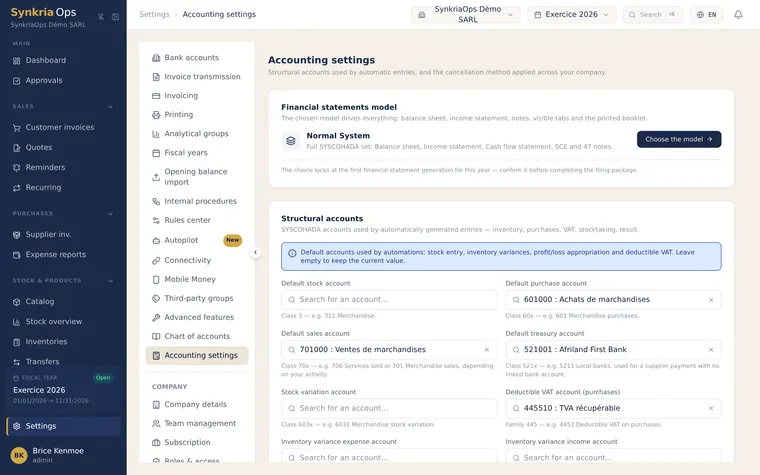
Settings → Accounting settings brings together the choices that shape how your accounting behaves: the financial-statement model that drives your whole bundle, the accounts used by automatic entries, the shape a reversal takes, and what happens when a sale exceeds available stock.
The financial-statement model: choose it first
Section titled “The financial-statement model: choose it first”This is the most important setting on the page, because it drives everything: the balance sheet, the income statement, which tabs are visible, which notes are available, and the printed plaquette.
| Model | What you get | Who it’s for |
|---|---|---|
| Système Normal | The full SYSCOHADA set: balance sheet, income statement, cash-flow statement, statement of changes in equity and the notes | Companies subject to the normal system |
| Système Minimal de Trésorerie (SMT) | Simplified balance sheet, receipts-and-payments income statement, and notes S1 to S4 | Very small businesses eligible for SMT |
Structural accounts
Section titled “Structural accounts”These are the SYSCOHADA accounts the application uses when it generates an entry on its own: posting a purchase to stock, an inventory variance, allocating the result, deductible VAT on purchases.
-
Set the ones you want to control
Stock account, purchase account, sale account, cash account, stock-variation account, deductible VAT account, and the inventory-variance expense and income accounts.
-
Leave the rest blank
A blank field keeps its current value: you don’t have to fill everything in at once.
-
Check them after an accounting-history import
After importing opening balances is the right moment to confirm these accounts still point to your chart of accounts.
The reversal mechanism
Section titled “The reversal mechanism”You choose the shape a reversal entry takes in your books. Both methods land on the same balance; they differ in the trace left in the journals, and therefore in what your accountant or an auditor will see.
Stock policy at invoicing
Section titled “Stock policy at invoicing”This setting decides what happens when a sales line requests more than the available stock: block the invoice, or allow it and accept negative stock. The choice applies to the whole company file, and the application honors it on both web and mobile. The check applies while typing and when validating the invoice.
| Choice | Effect |
|---|---|
| Block (default) | The quantity is reduced to the available stock; the invoice cannot be validated while it exceeds it |
| Warn only | The sale stays possible; the gap is shown to the seller and logged |
| Allow without checks | No check at all. Reserve it for businesses whose goods ship straight from the supplier |
Further reading
Section titled “Further reading”- Generate the bundle and its notes: the logical next step from this page
- Additional information for the bundle: what fills the notes automatically
- Importing historical accounting data: check these accounts after an import