Export centre: find, download and share your exports
Every file SynkriaOps produces for you (general ledger, trial balance, FEC, financial statements, invoices in Excel, PDF archives) lands in the same place: Documents → Exports. This page explains how to run an export, find it again, know how long it stays available, and share it without sending an attachment.
What the centre contains
Section titled “What the centre contains”Each export appears on one row with its reference, type, status and retention period. Files started from other pages land here too: a general ledger exported from the ledger, invoices exported from the invoice list, financial statements produced from the statements bundle.
The export runs in the background. You can keep working: a notification tells you when the file is ready.
Run an export
Section titled “Run an export”-
Open Documents → Exports and click New export.
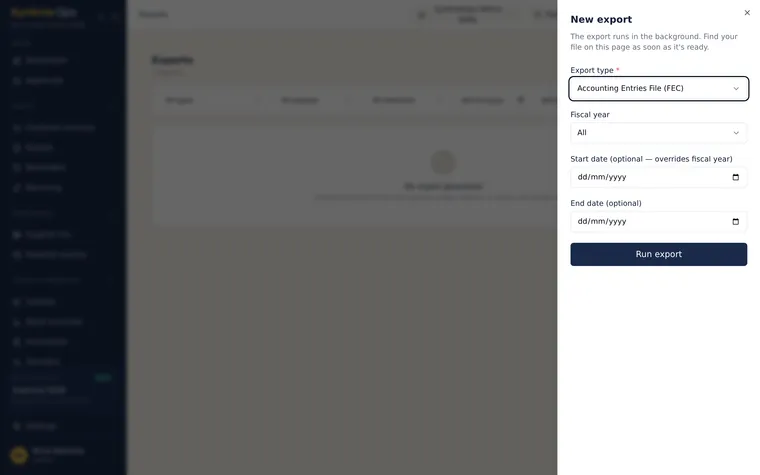
The New export panel. Only the type is required. -
In Export type, choose the document: general ledger, trial balance, customer or supplier balance, aged balance, FEC, balance sheet, income statement, analytical reports, budget, contacts, products…
-
In Fiscal year, choose the year concerned. For a shorter period, enter a start date and an end date: they replace the fiscal year dates.
-
Click Run export. The row appears as Pending, then Processing…, then Ready.
Export invoices, quotes or pro formas in bulk
Section titled “Export invoices, quotes or pro formas in bulk”On the invoice, quote or pro forma list, the Export button opens a dedicated menu:
| Setting | Options |
|---|---|
| Format | Excel (one spreadsheet) or PDF (ZIP archive) (one PDF per document) |
| Scope | Your selection, current or previous fiscal year, this month, this quarter, last 3 or 6 months, custom period, all history |
| Documents | Invoices and credit notes, invoices only or credit notes only |
| Payment | All, unpaid, partial, paid |
A PDF archive covers at most one fiscal year (366 days). The number of documents per archive and the number of archives per month depend on your plan. Above 500 MB, the file is split into several parts, all stored in the export centre.
Read an export’s status
Section titled “Read an export’s status”| Status | What it means | What you can do |
|---|---|---|
| Pending | The export is waiting its turn | Wait |
| Processing… | The file is being prepared | Keep working |
| Ready | The file is available | Download, share, archive, delete |
| Error | Generation failed | Retry (Regenerate for financial statements), or delete |
| Expired | The retention period is over and the file has been erased | Regenerate, or delete |
| Archived | The export has been filed away | Delete (see the warning below) |
| Cancelled | A financial statements generation was cancelled | The row stays in the history, without a file |
Know how long an export stays available
Section titled “Know how long an export stays available”Each export has a retention, a storage period set by its type. After that period, the file is erased and the row turns Expired.
| Retention | Duration | Examples |
|---|---|---|
| Regulatory (10 years) | No expiry | Financial statements of a closed fiscal year |
| Strategic (1 year) | 365 days | General ledger, trial balance, financial statements of an open fiscal year, migration report |
| Periodic (90 days) | 90 days | Customer, supplier and aged balances, analytical reports, budget report |
| Operational (7 days) | 7 days | Entries and quotes in Excel, FEC, VAT returns, and any type not listed here |
| Ephemeral (48 hours) | 48 hours | ZIP archives of PDFs |
The page’s Retention filter shows the exports of one level only, for example every Ephemeral (48 hours) archive you need to download soon.
Find an export
Section titled “Find an export”At the top of the list, combine the filters:
- Type and Status;
- From / To for the generation date;
- Retention;
- Origin: Financial statements (DSF) or Other exports;
- the search by reference or file name.
A financial statements export also carries a Generation details button. It shows the parameters used, the checks evaluated at generation time, and the comparison with the previous generation. This is also where an ADMIN or a CFO can cancel a generation, with a mandatory reason: the row then turns Cancelled.
Share an export with a QR code
Section titled “Share an export with a QR code”For a ready PDF export, the Sharing, QR code and Excel version action opens a panel in three parts.
| Part | What you do there |
|---|---|
| Download | The PDF, and its Excel version when there is one |
| QR code printed on the document | See the number of scans and the last scan, and choose whether the QR code also downloads the file |
| Share links | Follow active links, their views and their downloads |
The QR code printed on the PDF always verifies the document, even if you turn off download via QR. You can turn that download off for one document, or for the whole company in the advanced settings. To see what the person scanning it sees, read Verification QR code.
Regenerate an expired export
Section titled “Regenerate an expired export”Click Regenerate on the expired row. SynkriaOps first checks whether the data has changed since the original export:
- unchanged: the new file carries the same amounts;
- changed, or impossible to check: the new file is produced with the current data.
In every case, it gets a new reference. The old one is never rewritten.
To run the same export later with other dates, use Duplicate configuration: the panel opens already filled in.
Delete an export
Section titled “Delete an export”Delete permanently erases the file and its Excel version.
An export that is Pending or Processing… cannot be deleted. Archiving and deleting are reserved to the ADMIN, CFO and COMPTABLE roles (see Roles & permissions).
Fix common problems
Section titled “Fix common problems”| Problem | Likely cause | Solution |
|---|---|---|
| The Download button is gone | The export has expired, been archived or cancelled | Regenerate it if it expired, otherwise run a new export |
| ”File is not available yet” | The export is not Ready, or it was archived | Wait for generation to finish; an archived export must be run again |
| The export turns Error | Missing data or unsuitable fiscal year (the FEC needs a closed or reopened year) | Read the row’s message, fix it, then Retry |
| The PDF archive is refused | Period longer than one fiscal year, or your plan’s limit reached | Shorten the period or wait for next month |
| Only one file downloaded out of several | The export exceeded 500 MB and was split | Download the other parts from the history |